
CarPlay and Android Auto: Check Compatibility Before Connecting
2026-11-03 · Updated: 2026-11-04 · 3 min read
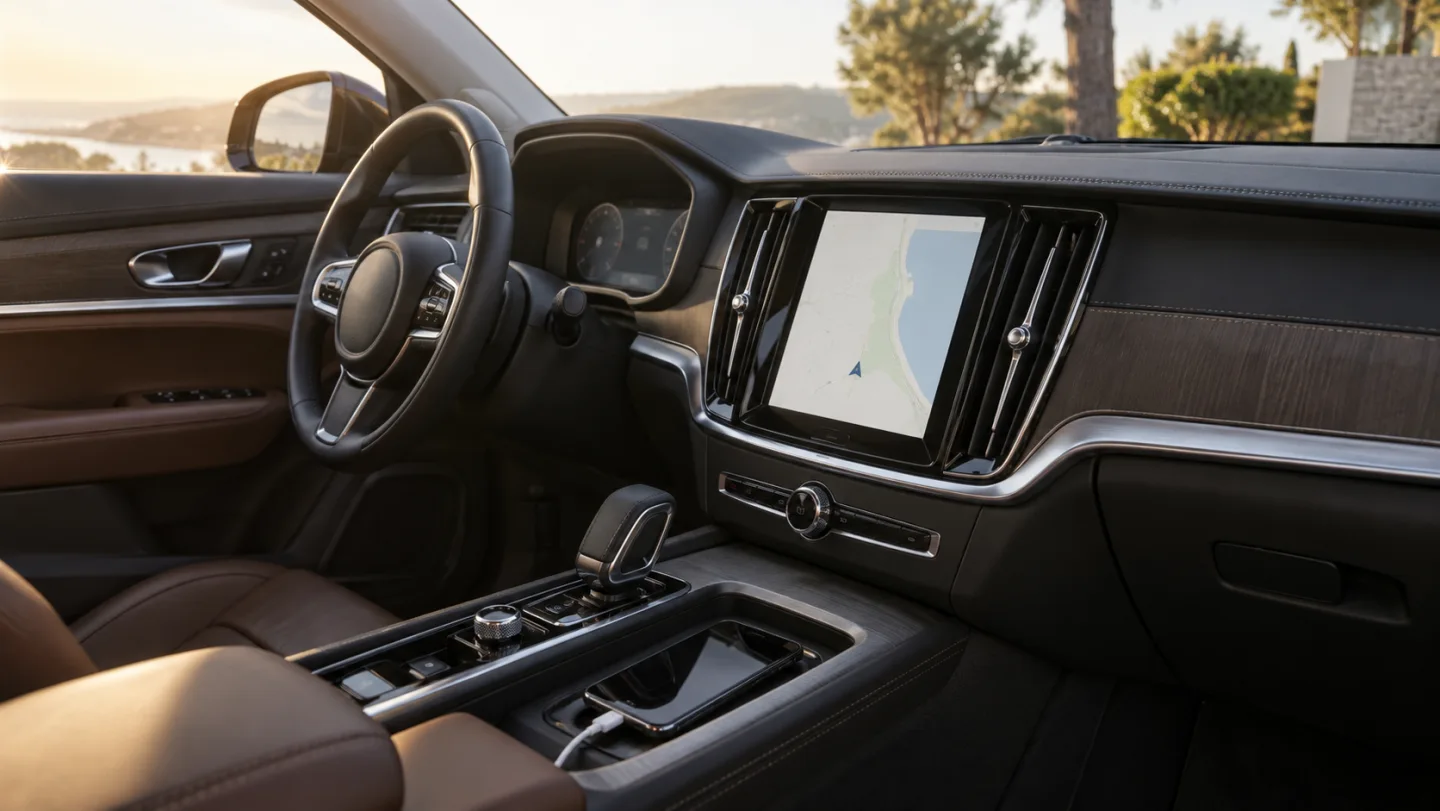
CarPlay and Android Auto compatibility depends on a chain of devices and software. Bluetooth being present in a car does not by itself prove that wireless projection is supported. Check the phone, the exact vehicle configuration and the connection method before buying an adapter or blaming a cable.
Identify the actual equipment
Record the phone model and operating system, vehicle model year, trim and multimedia unit. Equipment can differ between trims and markets. A broad model name or a photograph of a similar dashboard is not enough to establish your car's capabilities.
Use official compatibility and setup information, then verify the vehicle's own manual. If an aftermarket head unit is installed, its model and firmware are part of the chain too. Keep the distinction between factory support and added equipment visible.
Check wired support first
A USB port may provide charging without supporting the data connection needed for projection. Identify the port specified by the vehicle or head-unit manufacturer. Use a cable documented for the required data task, not just one that happens to charge the phone.
Keep the first trial simple: one phone, the documented port and a suitable cable. Complete the setup prompts while parked. If the connection works, record the configuration before changing anything else.
Verify wireless support separately
Wireless capability must be confirmed for the specific equipment. Ordinary Bluetooth calls or music playback are not the same feature as wireless CarPlay or wireless Android Auto. Do not infer one from the other.
If you are considering an adapter, establish what existing wired support it requires and whether the manufacturer supports your exact configuration. An adapter listing is not a guarantee for every vehicle sharing the same badge or model year.
Try the tasks that matter
With the vehicle stationary, test navigation directions, microphone performance, music controls and the applications you actually need. Check how the system behaves when reconnecting after a short stop. A single successful welcome screen is a limited check, not a complete daily-use evaluation.
Also decide what you expect from messages and voice control. Supported app functions and permissions can vary. Use the phone and system's current official instructions rather than assuming that a phone app exposes all of its features in the car interface.
Troubleshoot one change at a time
If setup fails, keep a record of the error, cable, port and phone version. Try a documented alternative cable or the correct data port while preserving the rest of the setup. Changing phone, cable, port and settings together may produce a working result without revealing the cause.
Follow the manufacturer's connection and restart procedures where appropriate. Avoid buying replacement equipment until you know which part of the chain has been checked. The USB-C data guide explains why connector shape alone does not establish capability.
Keep driving and setup separate
Configure the system and carry out tests while parked. In use, keep attention on driving and follow applicable rules and the vehicle's instructions. A familiar phone interface does not remove distraction or make every interaction appropriate while moving.
This is a compatibility checklist, not a universal test of every vehicle or a promise that wireless support can be added. Apple and Google publish compatibility and connection requirements; your vehicle's exact equipment remains decisive. The accompanying video covers these checks rather than demonstrating every possible car-phone combination.
Sources and scope
Related videos
The linked videos use Turkish narration. This article provides the English explanation of the same topic and assumptions.
Edited by GKN Labs. Editorial update: 4 November 2026. Cover and explanatory visuals are illustrative, not evidence of product testing or measurement.
Related
 Business
How Long to Upload 1 TB? Use Upload Speed, Not Download
Calculate 1 TB cloud upload time from Mbps, distinguish bits from bytes and account for daily operating hours, interruptions and real service limits.
 Business
NAS Electricity Cost: Calculate 24/7 Energy Use
Calculate annual NAS electricity use from watts or measured kWh, understand adapter ratings and add energy to a complete storage-cost comparison.
NAS vs Cloud Storage: Compare Three-Year Ownership Costs
Compare NAS and cloud storage with a three-year cost example, usable RAID capacity, electricity, backup requirements and a practical decision checklist.
Turkish narration. Check the exact phone, vehicle, USB port and wired or wireless support before troubleshooting CarPlay or Android Auto. Read the companion English guide for the same topic and assumptions.
Turkish narration. Check the exact phone, vehicle, USB port and wired or wireless support before troubleshooting CarPlay or Android Auto. Read the companion English guide for the same topic and assumptions.